








With MagicalAPI and viaSocket, you can build an automated resume parsing workflow that starts when a new resume is added to Google Drive, sends it to MagicalAPI for processing, waits for the result, and then automatically saves the extracted information to Google Sheets.
In this guide, we’ll build the workflow step by step:
Google Drive → Create Download URL → MagicalAPI Resume Parser → Delay → Check Resume Parser Status → Google Sheets
This integration is also part of the partnership between MagicalAPI and viaSocket, bringing AI-powered resume processing into no-code automation workflows.
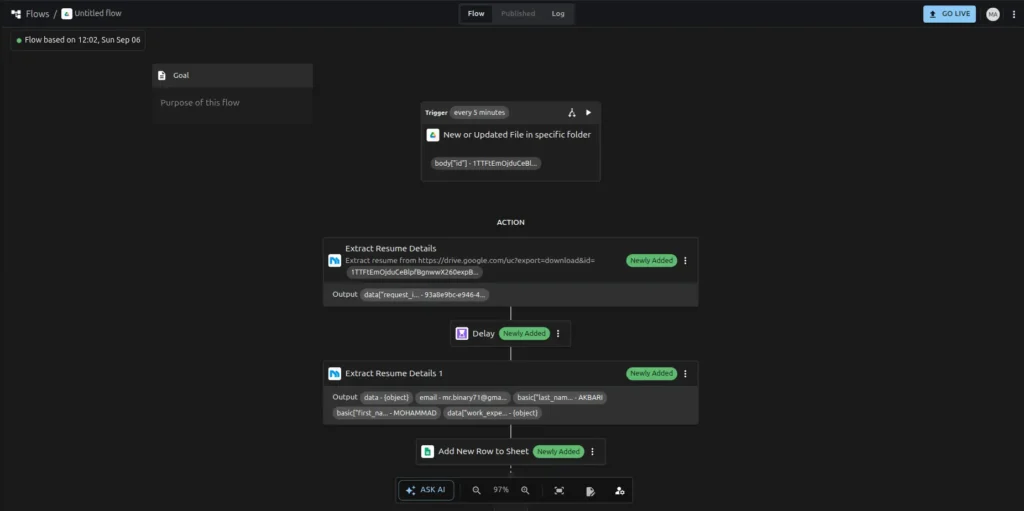
Step 1: Create a New Workflow in viaSocket
First, log in to your viaSocket account and create a new workflow.
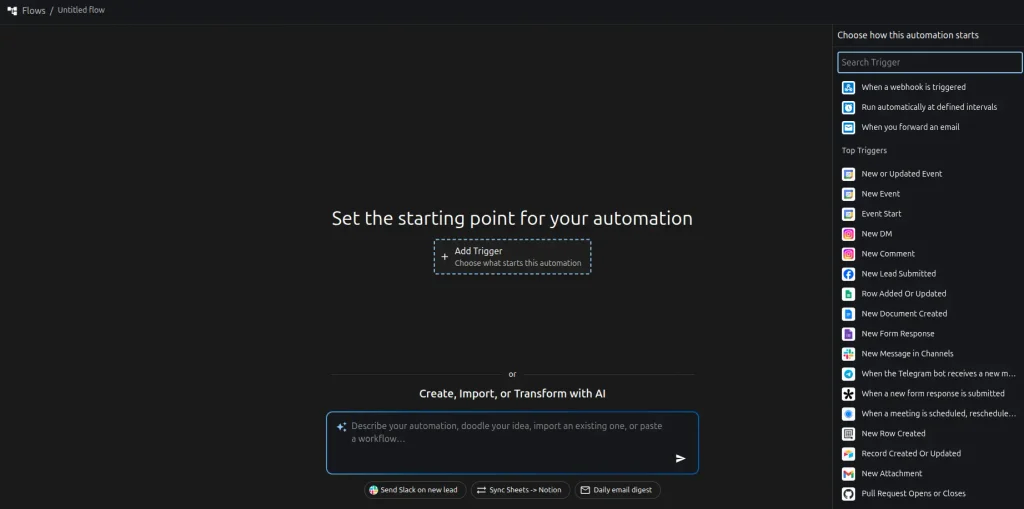
A viaSocket workflow consists of multiple steps that pass information from one application to another.
For this workflow, we’ll use Google Drive as the trigger.
The first step will be:
New File Added to Google Drive
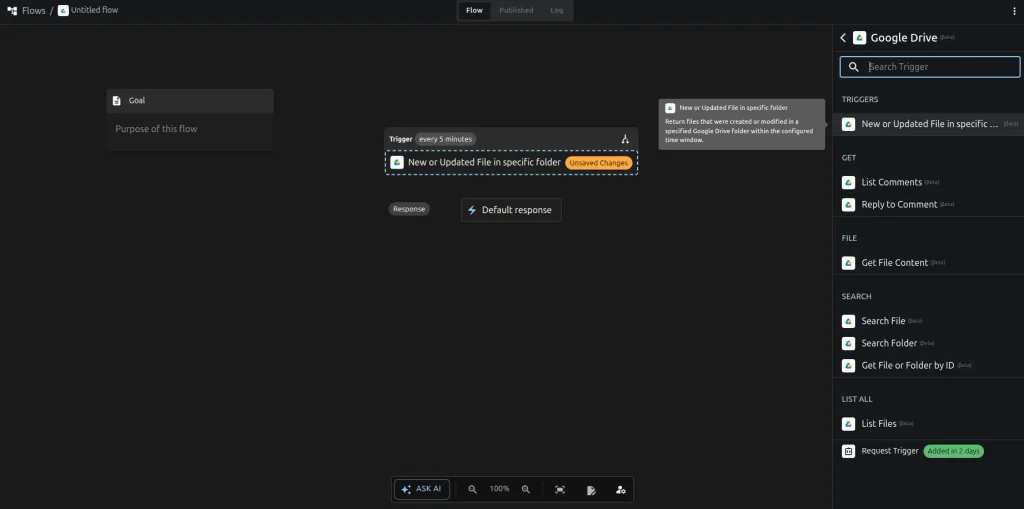
Select Google Drive as the application for your trigger.
Then choose the trigger that detects when a new file is added to a specific folder.
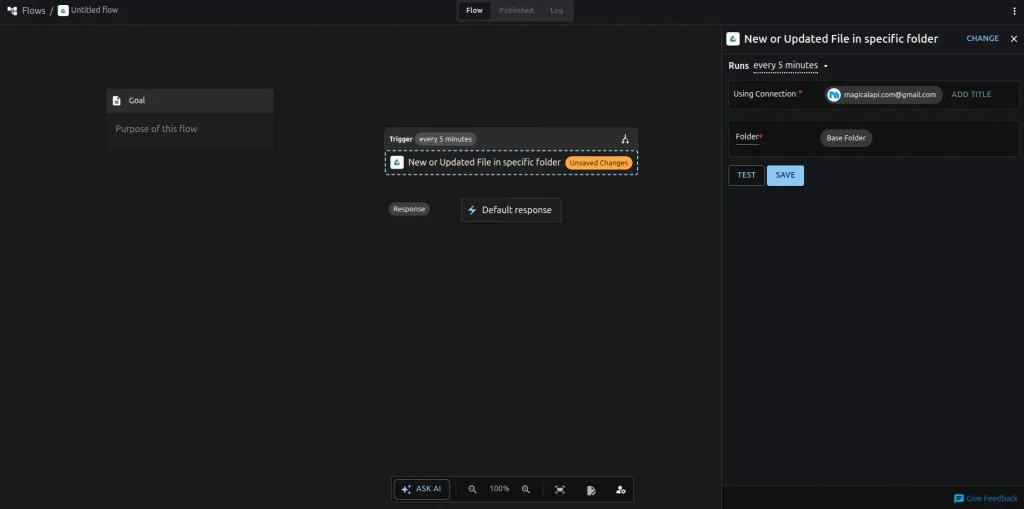
Step 2: Select the Google Drive Folder
Next, select the Google Drive folder where you’ll upload your resumes.
For example, you could create a folder called:
Resumes
Every time a new resume is added to this folder, viaSocket will start the workflow.
Run a test to make sure viaSocket can detect a file from the selected folder.
The test data should return information about the uploaded file, including the file name and file identifier.
Step 3: Create a Downloadable URL for the File
The next step is to create a URL that can be used to download the resume.
This is important because the resume needs to be accessible to the MagicalAPI Resume Parser.
Add the appropriate Google Drive step in viaSocket to create a downloadable URL for the file detected in the previous step.
Use the file information returned by the Google Drive trigger.
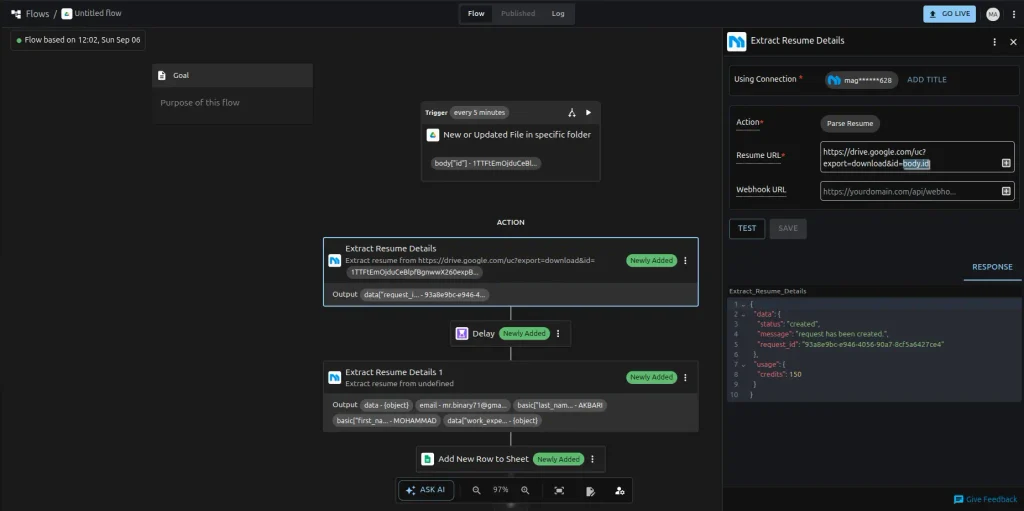
The output of this step should contain the URL that will be passed to MagicalAPI.
Your workflow now looks like:
Google Drive → Download URL
Step 4: Add MagicalAPI Resume Parser
Now we can send the resume to MagicalAPI.
Add a new action to your workflow and select MagicalAPI.
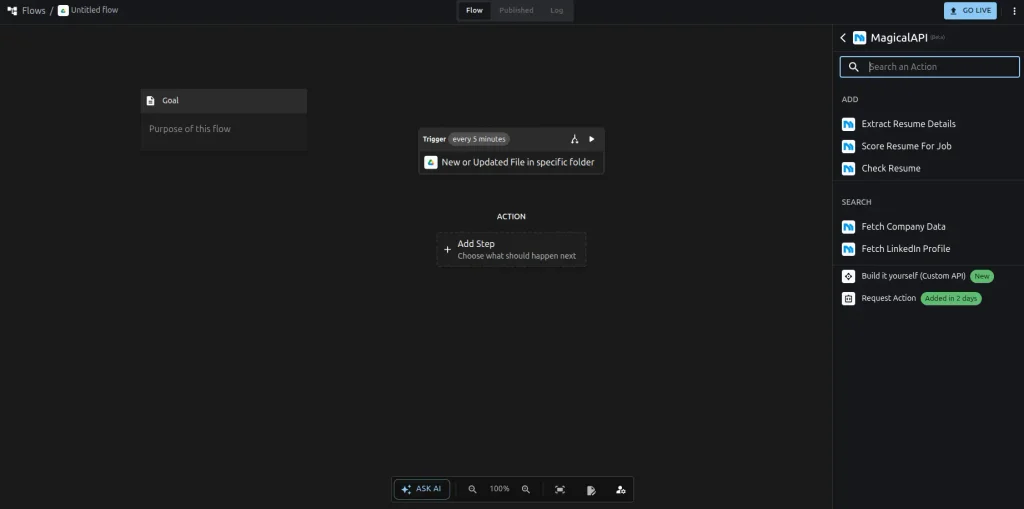
Then select the Resume Parser action.
MagicalAPI’s Resume Parser extracts structured information from resumes so that it can be used by the next steps of your automation.
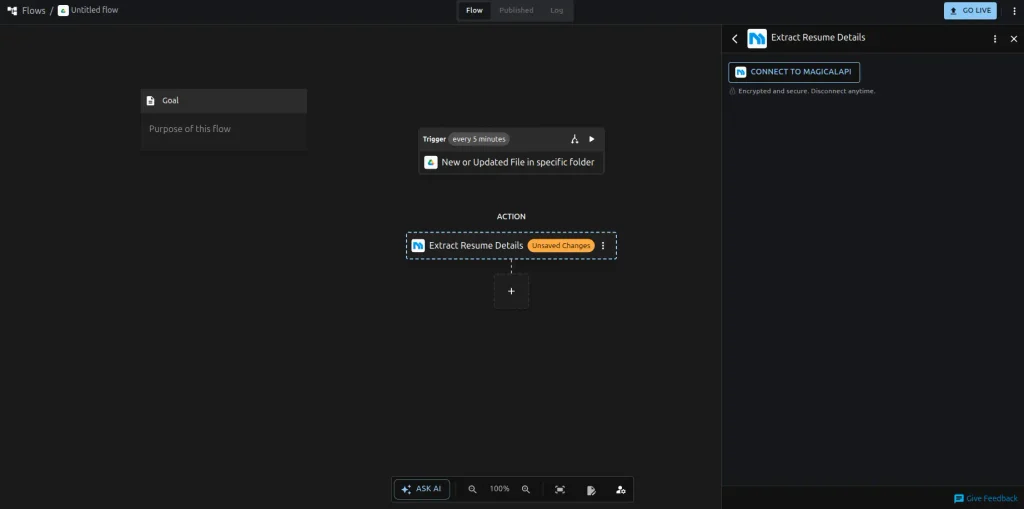
Step 5: Connect Your MagicalAPI Account
After selecting the Resume Parser, connect your MagicalAPI account.
Enter your MagicalAPI API key when requested.
If you haven’t generated an API key yet, log in to your MagicalAPI dashboard and create one from the API section.
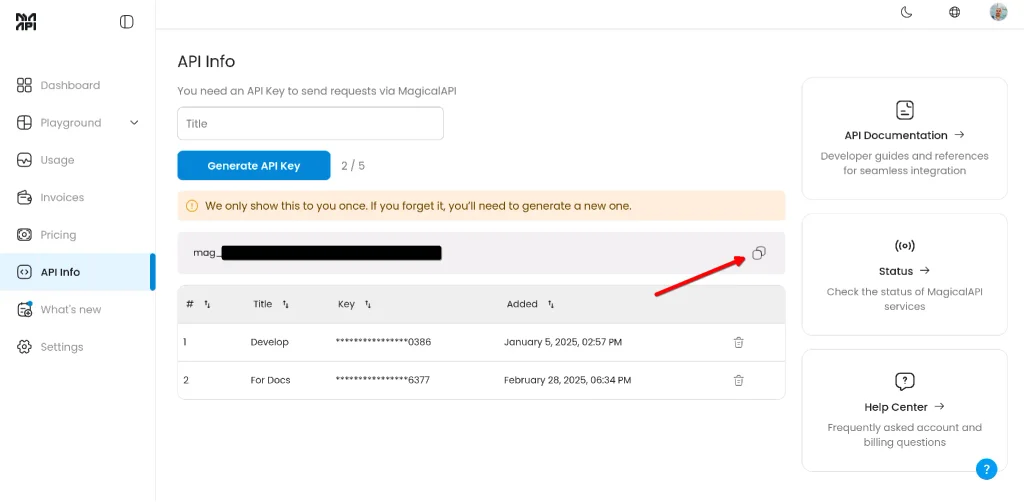
Then return to viaSocket and connect your account.
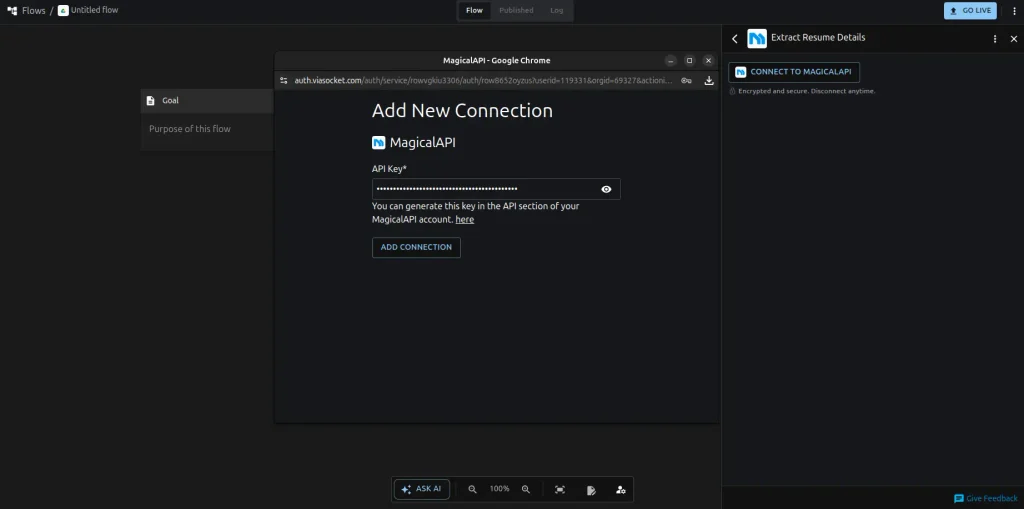
Once the connection is successful, you can configure the Resume Parser.
Step 6: Send the Resume to MagicalAPI
Now we need to tell MagicalAPI which resume it should parse.
In the Resume Parser step, use the downloadable URL generated in Step 3.
Map the download URL from the previous step into the appropriate Resume Parser input.
The important connection here is:
Google Drive File → Download URL → MagicalAPI Resume Parser
Once configured, the Resume Parser will receive the resume URL whenever a new file enters your Google Drive folder.
Run a test to make sure the request is sent successfully.
Step 7: Wait for the Resume Parser
Resume parsing is an asynchronous process.
That means the initial request starts the parsing process, but the final result may not be available immediately.
For this reason, we’ll add a Delay step to the workflow.
Add the Delay step after the MagicalAPI Resume Parser.
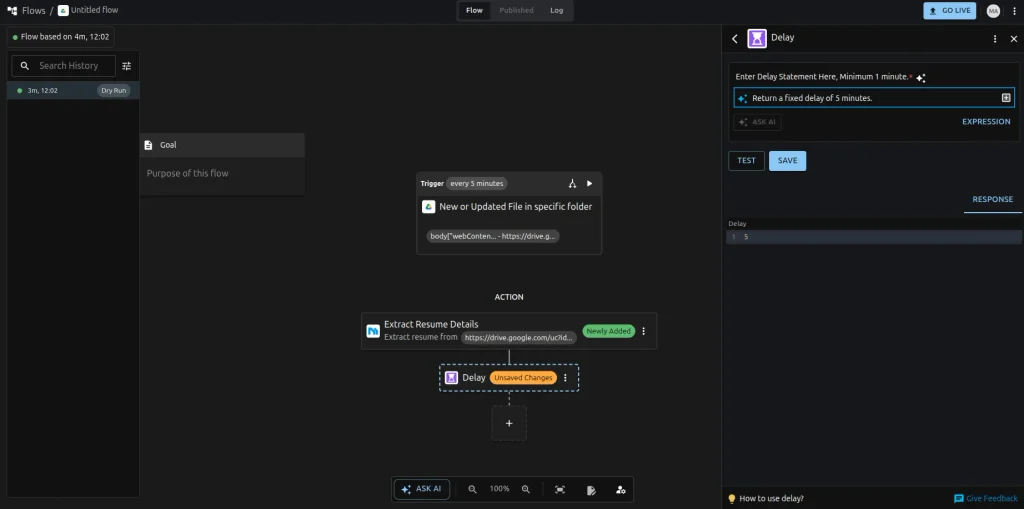
Configure the delay according to your workflow.
The purpose of this step is to give the Resume Parser enough time to process the resume before we check whether the result is ready.
Your workflow now looks like:
Google Drive → Download URL → MagicalAPI Resume Parser → Delay
Step 8: Check if the Resume Parser Result is Ready
After the delay, we need to check the status of the Resume Parser request.
Add another MagicalAPI step to the workflow.
This step checks whether the parsing result is ready and retrieves the response when available.
Use the request or job identifier returned by the initial Resume Parser step.
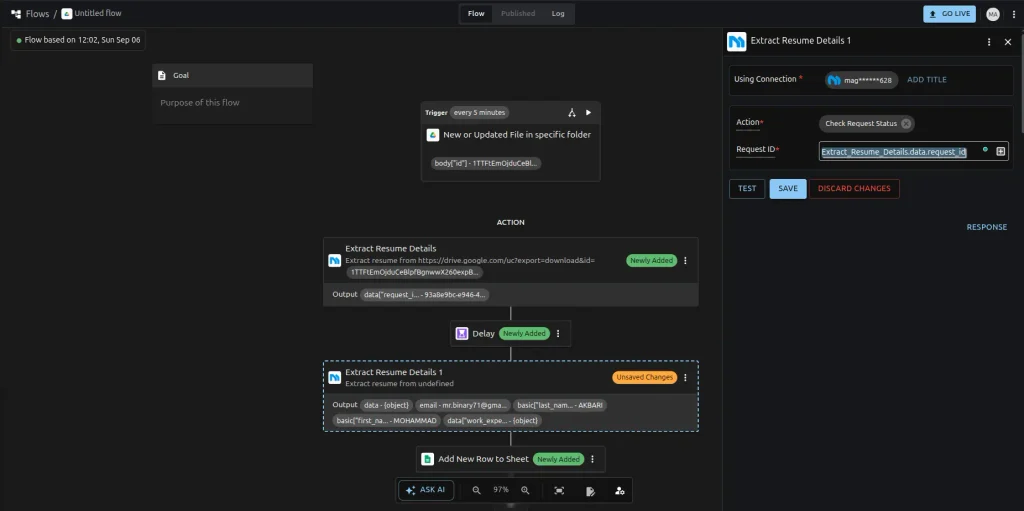
Map the identifier from the Resume Parser step into the status-check step.
This connects the two MagicalAPI steps:
Start Parsing → Wait → Check Result
Step 9: Retrieve the Parsed Resume Data
Once the Resume Parser has finished processing the resume, the status-check step will return the parsed information.
The returned data can contain structured information extracted from the resume.
For example, depending on the resume and the available output, you may receive information such as:
- Candidate name
- Contact information
- Education
- Work experience
- Skills
- Other resume details
At this point, the difficult part is done.
We now have structured resume data that can be used by the next step of the workflow.
Step 10: Add Google Sheets
Now let’s save the result.
Add Google Sheets as the next application in your viaSocket workflow.
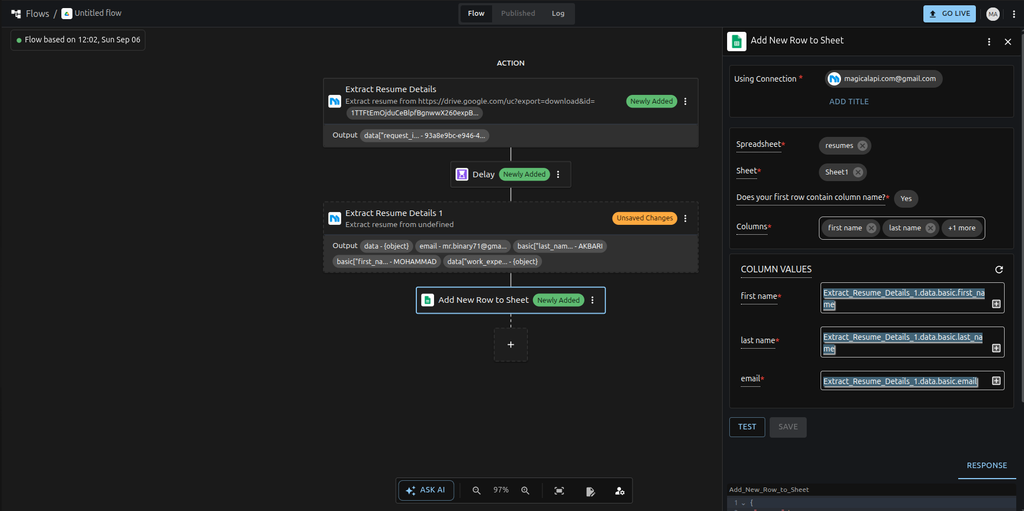
Choose the action that creates a new row in a spreadsheet.
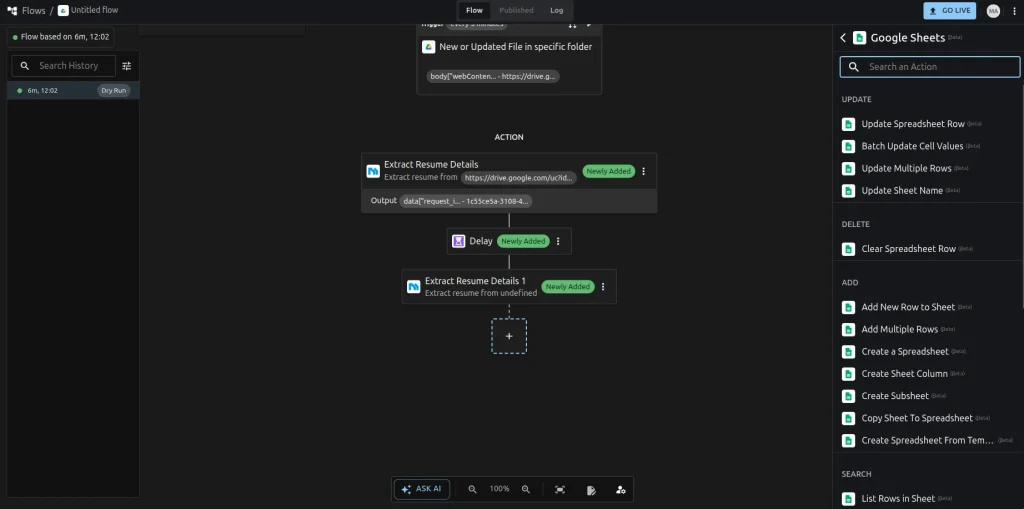
Connect your Google Sheets account and select the spreadsheet where you want to store the parsed resume information.
You can create columns based on the information you want to store.
For example:
| Name | Phone | Skills | Experience | Education |
Step 11: Map MagicalAPI Data to Google Sheets
Now we connect the output from MagicalAPI to the corresponding Google Sheets columns.
For example:
Candidate Name → Name
Email → Email
Phone → Phone
Skills → Skills
Experience → Experience
Education → Education
Select the corresponding fields from the MagicalAPI output when configuring each Google Sheets field.
This is where the workflow turns the AI-generated output into a usable business record.
Instead of receiving a large block of resume information, your team gets a structured row in Google Sheets.
Step 12: Test the Complete Workflow
Now it’s time to test the entire workflow.
Upload a sample resume to the Google Drive folder you selected earlier.
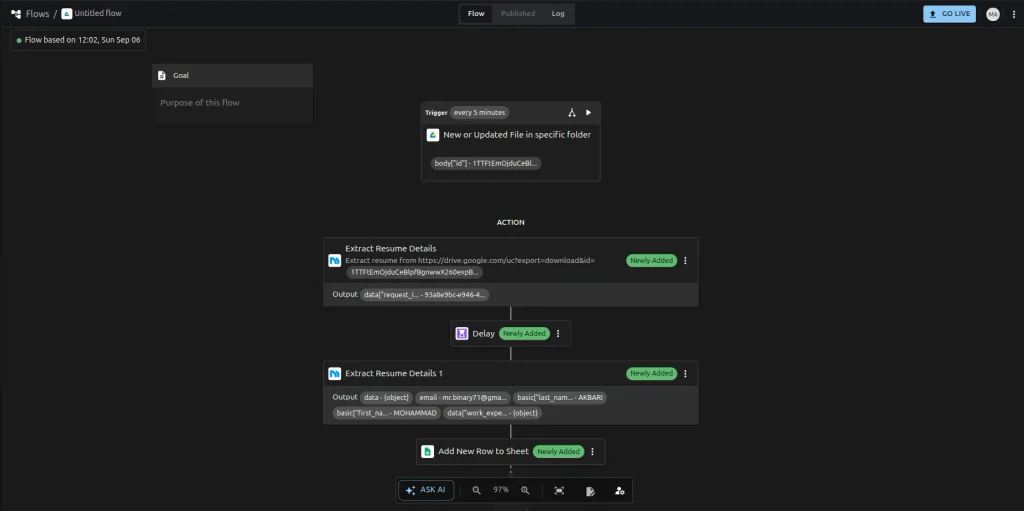
The workflow should then execute each step:
1. Google Drive detects the new resume.
2. viaSocket creates the downloadable URL.
3. MagicalAPI receives the resume and starts parsing it.
4. The workflow waits for the parsing process.
5. viaSocket checks the parsing status and retrieves the result.
6. The structured resume data is passed to Google Sheets.
7. Google Sheets creates a new row with the extracted information.
Then open your Google Sheet.
You should see the extracted resume information automatically added as a new row.
Step 13: Publish Your Workflow
If everything looks correct, you’re ready to publish the workflow.
Once published, the process becomes automatic.
Whenever a new resume is added to the Google Drive folder:
Google Drive
↓
Create Download URL
↓
MagicalAPI Resume Parser
↓
Delay
↓
Check Parsing Status & Get Result
↓
Google Sheets
No manual resume processing is required.
Your Automated Resume Parsing Workflow Is Ready
That’s it!
You’ve now connected Google Drive, MagicalAPI, and Google Sheets through viaSocket to create an automated resume processing workflow.
Instead of manually downloading resumes, parsing them, and entering candidate information into a spreadsheet, the entire process can run automatically.
The same approach can also be extended to more advanced recruitment workflows using other MagicalAPI capabilities, such as resume checking, resume scoring, and LinkedIn data extraction.
Start Automating with MagicalAPI and viaSocket
MagicalAPI and viaSocket are official partners, combining AI-powered data processing with no-code workflow automation.
If you’re working with resumes or professional data and want to automate repetitive processes, you can use the MagicalAPI integration in viaSocket to build your own workflow.