








Adding a promotion to your LinkedIn profile helps you to accurately reflect your career history and progression.
It is usually unnecessary to delete your previous job title and replace it with a new one. You can list the new position under the same company so that both jobs, along with their individual start and end dates, appear on your profile.
How to Add promotion on LinkedIn?
If you were promoted at your current company, you can add your new role as a separate position in the Experience section of your LinkedIn profile.
1. Log in to your LinkedIn profile
First, log in to your LinkedIn account and go to your profile page. Then go to the Experience section. It shows all your current and previous job positions.
2. Select the Edit option
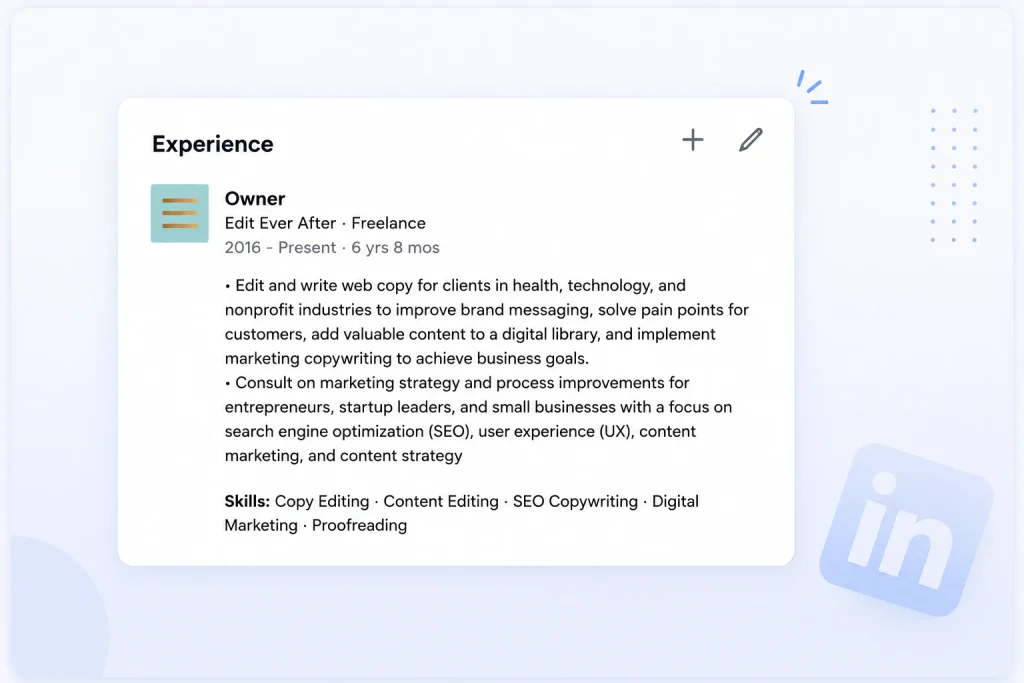
In the Experience section for sharing a promotion on LinkedIn, find your current job position and click on the pencil icon (Edit). From here, you can edit your current job information or add a new position to your work history.
3. Add a new job position
Select Add position to create a new role. If your promotion happened within the same company, select the same company for your new position.
This is important because LinkedIn can group consecutive positions at the same company, making your career progression easier for profile visitors to understand.
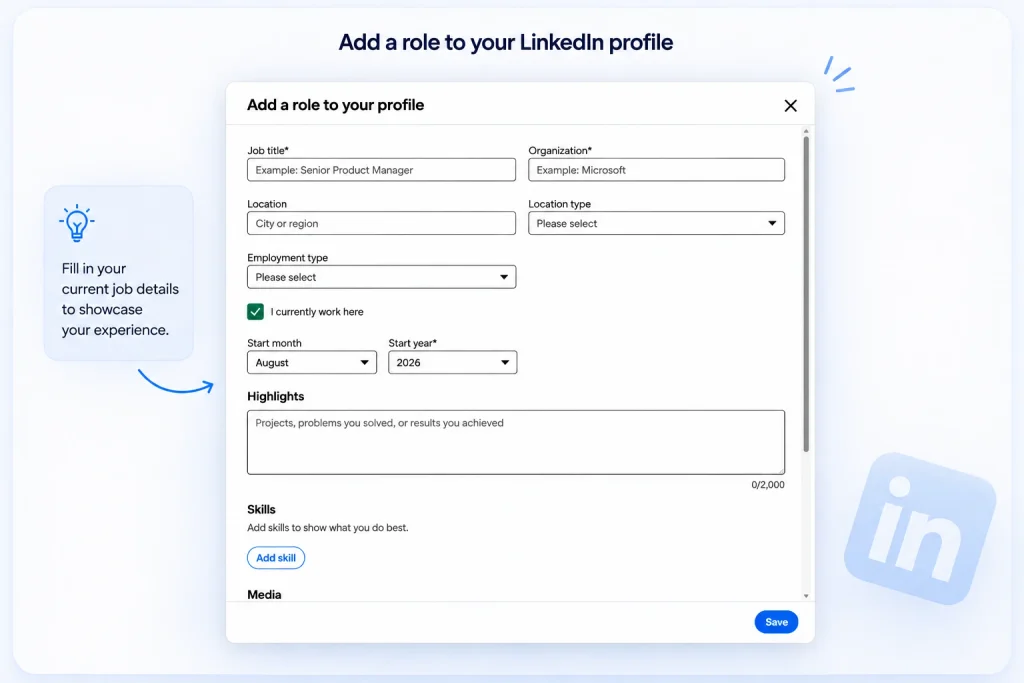
4. Enter your new position information
Enter your new job title in the Title field and select the Employment type. Then, check the company name and make sure you have selected the same company as your previous role.
For example, if you were previously a Marketing Manager and have now been promoted to Senior Marketing Manager, enter the new title as your current position.
5. Enter the start date of the new role
If you are still working in your new position, select “I am currently working in this role” and enter the month and year you started the new role.
Accurate dates are important because LinkedIn uses them to display the order and duration of your positions.
6. Specify your location and job type
If necessary, for sharing a promotion on LinkedIn, enter your work location and select the correct option from LinkedIn’s suggestions. Then select the appropriate Location type, such as:
- Remote
- Hybrid
- On-site
Since your promotion marks the end of your previous role, make sure the previous position has the correct end date.
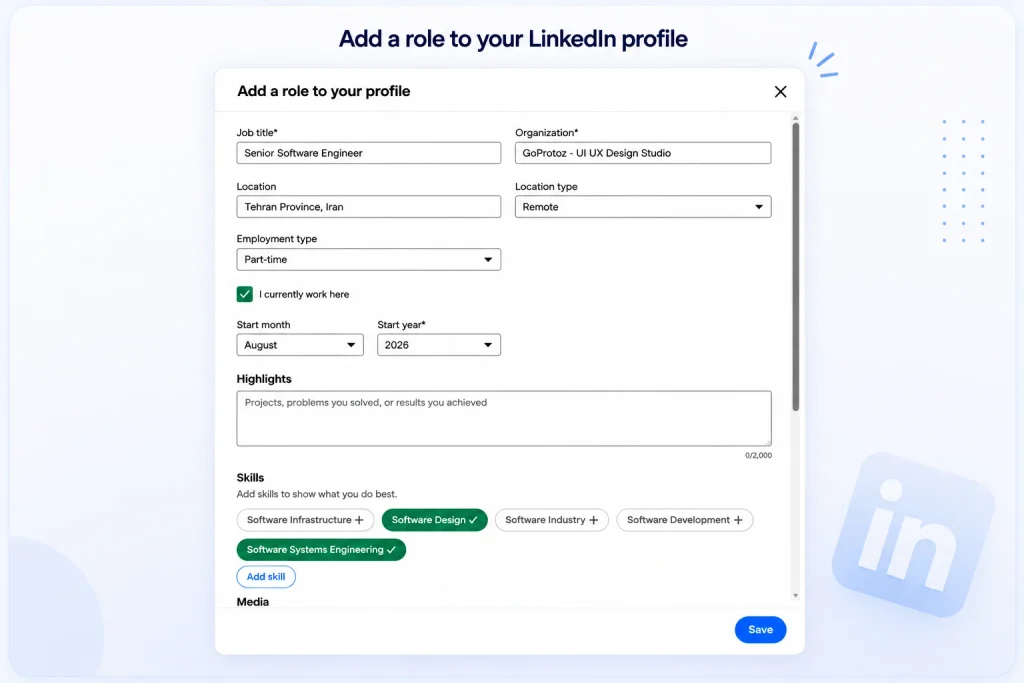
7. Save the Changes
For adding a promotion on LinkedIn, after reviewing the title, company, dates, and other information, click Save. Your new position will be added to the Experience section. When the information is entered correctly, LinkedIn can display your successive positions in a way that makes your career progression within the company clear.
How to List a Promotion at the Same Company?
One of the most common mistakes when sharing a promotion on LinkedIn is editing the previous job title instead of adding a new position. Let’s say someone worked as a Marketing Manager from 2024 to 2026 and was promoted to Senior Marketing Manager in 2026. A better structure for their profile would be:
- Company Name
- Senior Marketing Manager — 2026 – Present
- Marketing Manager — 2024 – 2026
This structure allows employers and other profile visitors to see that you progressed within the same company.
If you change the previous title directly, you may lose the history of your former position and the time you spent in that role. To show career progression, it is better to add the new role as a separate position and enter the end date of the previous position correctly.
- If your company does not have an official LinkedIn presence yet, you may also want to learn more about creating a LinkedIn company page.
Make sure that the company name, employment type, and dates for both positions are accurate and consistent. This information helps LinkedIn properly display your successive positions within a company.
How to Post a Promotion on LinkedIn?
Sharing a promotion on LinkedIn profile is different from posting about a promotion. When you add a new position in the Experience section, your job information is updated on your profile.
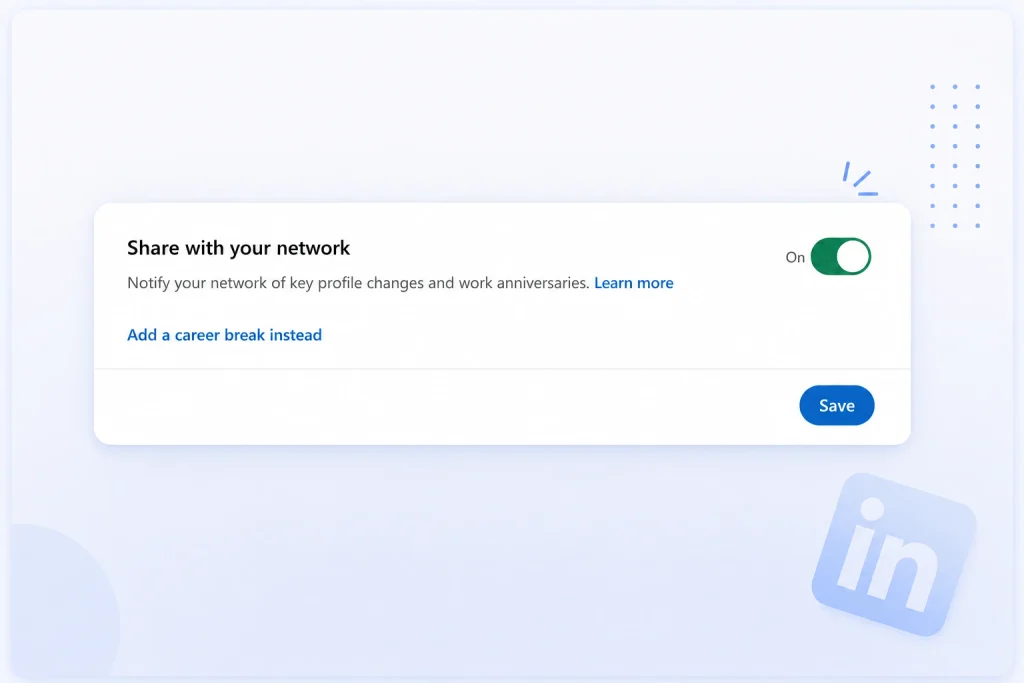
If profile-change sharing is enabled, LinkedIn may also share the job change with your network. But if you want to talk about your promotion publicly yourself, you can publish a separate post.
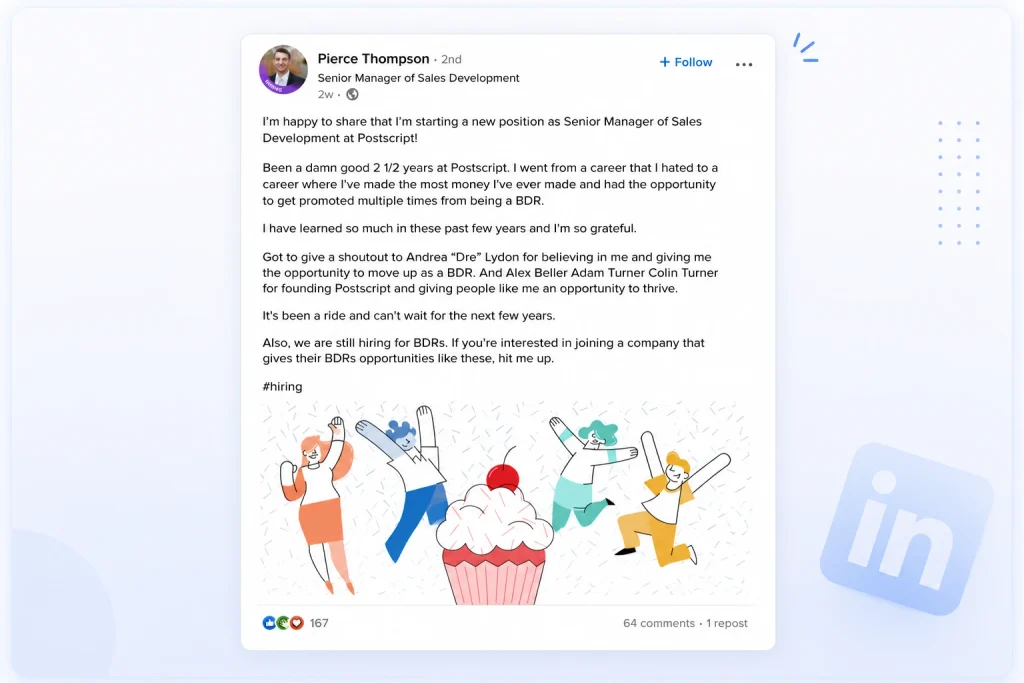
Professional and simple:
I’m excited to continue my career as a Senior Marketing Manager. I’m grateful to the team and colleagues who have supported me along the way.
Acknowledgement:
I am pleased to announce that I have been promoted to Senior Marketing Manager. I am very grateful for the opportunity to learn, grow, and work with a great team.
More personal:
I’m excited to begin this new chapter as Senior Marketing Manager at “Company Name” and look forward to seeing what opportunities this new phase will bring.
We suggest using a combination of the below formula in your post to make sharing your personal story more engaging for your network:
Promotion + Context + Responsibility + Achievement + Gratitude + Future.
LinkedIn Profile Scraper - Profile Data
Discover everything you need to know about LinkedIn Profile Scraper , including its features, benefits, and the different options available to help you extract valuable professional data efficiently.
Should You Notify Your Network?
Sharing a promotion on LinkedIn profile is all about your personal preference and circumstances. If your promotion is a significant achievement and you want your professional network to know about your new role, sharing the update can be a good idea. This will let your colleagues, former employers, and other professional connections stay informed about your career path.
If you prefer to update your profile without making the change public, you can review your settings for sharing profile changes and disable sharing if available. Depending on your LinkedIn interface and account settings, you may also see a sharing option while editing your profile.
- If you are using LinkedIn to build professional relationships or identify new business opportunities after moving into a higher-level role, tools such as LinkedIn Sales Navigator can also help you find and connect with relevant professionals.
What to Update After a Promotion
- Headline: If your new job title is important, reflect that in the headline.
- About: Update your professional introduction if your responsibilities have changed significantly.
- Responsibilities: Add the duties and responsibilities of the new role.
- Skills: Review and add skills relevant to the new position if needed.
- Achievements and Projects: Record any significant achievements or projects relevant to the new role.
For teams that need to work with LinkedIn profile data at scale, our LinkedIn Profile Scraper and LinkedIn Data Scraping services provide structured data that can support recruitment, sales, research, and automated workflows.
Common Mistakes When Adding a Promotion on LinkedIn
When adding a promotion on LinkedIn, a few mistakes can prevent your career path from being displayed correctly:
- Remove a previous position: Don’t delete a previous job title just because you got promoted. Keeping it will help you showcase your history and progress.
- Editing a previous title instead of adding a new role: It’s best to post a promotion as a new position, not just a title change to the same position.
- Entering incorrect dates: The start date of the new role and the end date of the previous role should match.
- Forgetting to update your responsibilities: The new role may have different responsibilities, so update the job description accordingly.
- For more detailed guidance, see our guide to LinkedIn optimization.
Frequently Asked Questions About LinkedIn Promotions
Find quick answers to common questions about adding, listing, and announcing a promotion on LinkedIn.
How to list a promotion on LinkedIn?
Go to your profile, open the Experience section, and select Add position to add your new role under the same company. Then enter your title, start date, and other information, and save your changes.
Do I need to delete my previous job to register my new promotion on LinkedIn?
No. If the promotion happened within the same company, it’s best to keep your previous role and add the new position separately. This will help you see your career progression more clearly.
Will LinkedIn automatically announce my promotion?
LinkedIn may share your job change with your network if you have the option to share profile changes. If you want to talk about the promotion yourself, you can also publish a separate post.
Should I post about my promotion on LinkedIn?
No, you don’t. If the promotion is a significant accomplishment for you or you want to let your professional network know about your new role, a short post might be a good choice. Otherwise, an Experience Update alone will suffice.